
3. Determining Signature Positions
Determining Signature Positions
When integrating with the Circularo API, precisely positioning signature fields on documents is crucial for creating a professional and user-friendly signing experience. This guide explains how Circularo's coordinate system works and provides practical methods for determining optimal signature positions.
Why Signature Positioning Matters
Proper signature positioning is essential for:
Creating a professional document appearance
Ensuring signatures are placed in legally appropriate locations
Providing a smooth user experience for signers
Maintaining consistency across multiple documents
Avoiding overlapping fields or signatures that obscure important content
Understanding Circularo's Coordinate System
Circularo uses a normalized coordinate system where positions are specified as percentages of the document's dimensions rather than absolute pixel values. This approach ensures that signature fields appear in the correct relative positions regardless of the document's actual size or the device used to view it.
Coordinate System Basics
The coordinate system has the following characteristics:
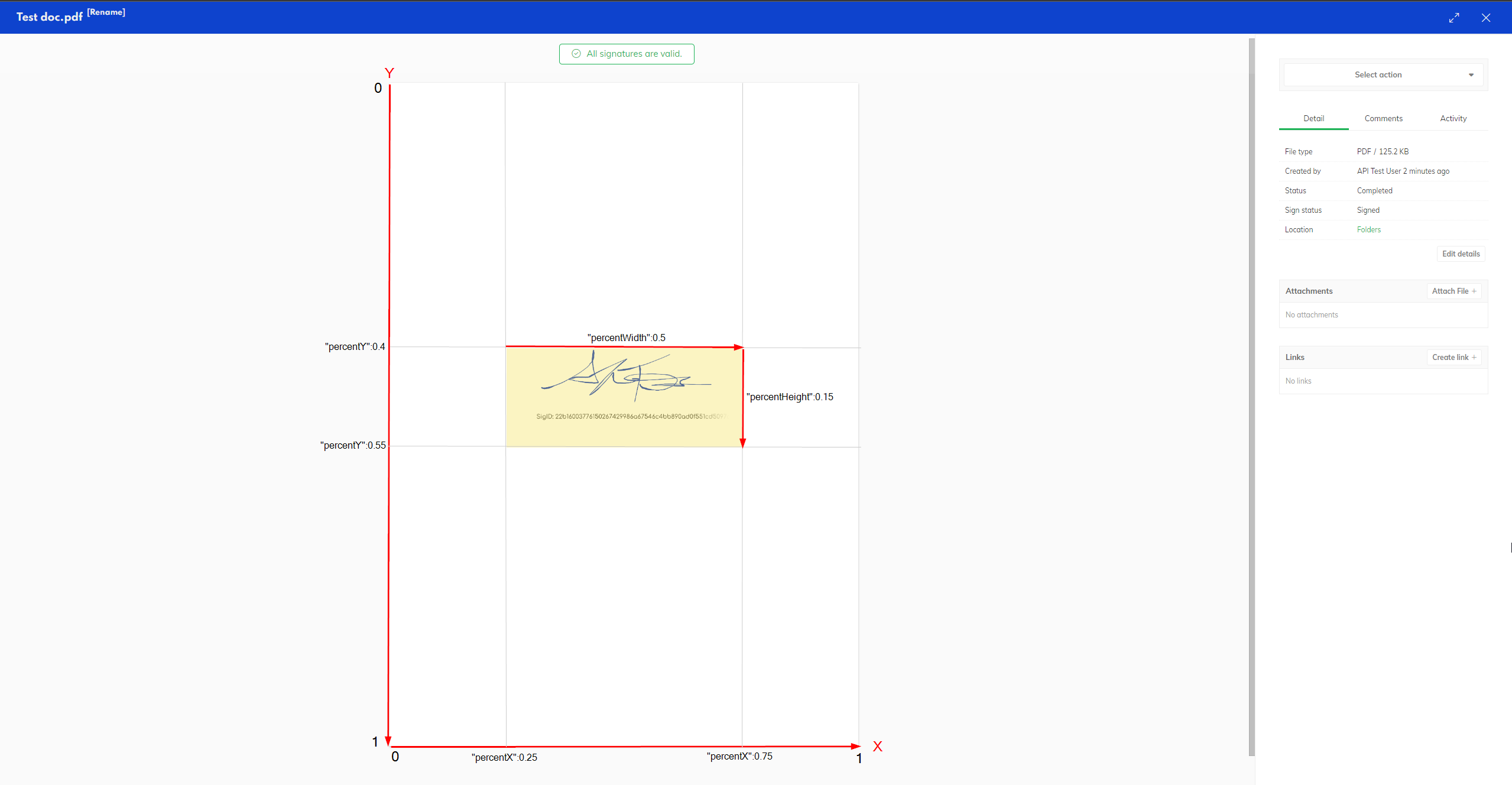
Origin (0,0) is at the top-left corner of the document
X-axis runs horizontally from left (0.0) to right (1.0)
Y-axis runs vertically from top (0.0) to bottom (1.0)
All values are expressed as decimals between 0.0 and 1.0
Values represent percentages of the document's dimensions
Key Position Parameters
When positioning signature fields, you'll work with these four essential parameters:
percentX: Horizontal position of the field's left edge (0.0 = left edge, 1.0 = right edge)percentY: Vertical position of the field's top edge (0.0 = top edge, 1.0 = bottom edge)percentWidth: Width of the field as a percentage of document width (0.0 to 1.0)percentHeight: Height of the field as a percentage of document height (0.0 to 1.0)

Remember that percentX and percentY specify the starting position (top-left corner) of the signature field, not its center.
Positioning Example
The following example places a signature field that: - Is positioned 25% from the left edge of the document (percentX = 0.25) - Is positioned 40% from the top edge of the document (percentY = 0.4) - Has a width equal to 50% of the document width (percentWidth = 0.5) - Has a height equal to 15% of the document height (percentHeight = 0.15)
"percentX": 0.25,
"percentY": 0.4,
"percentWidth": 0.5,
"percentHeight": 0.15
This creates a signature field in the middle of the page, as illustrated below:
Methods for Determining Signature Positions
There are several approaches to determining the optimal position for signature fields in your documents. We'll explore three practical methods, from most user-friendly to most technical.
Method 1: Using the Circularo UI (Recommended)
The easiest way to determine signature positions is to use Circularo's user interface to place signatures visually, then extract the position values.
Step 1: Access the Signing Interface
From your Circularo dashboard, click the "Sign Now" button.

Step 2: Upload and Position Signatures
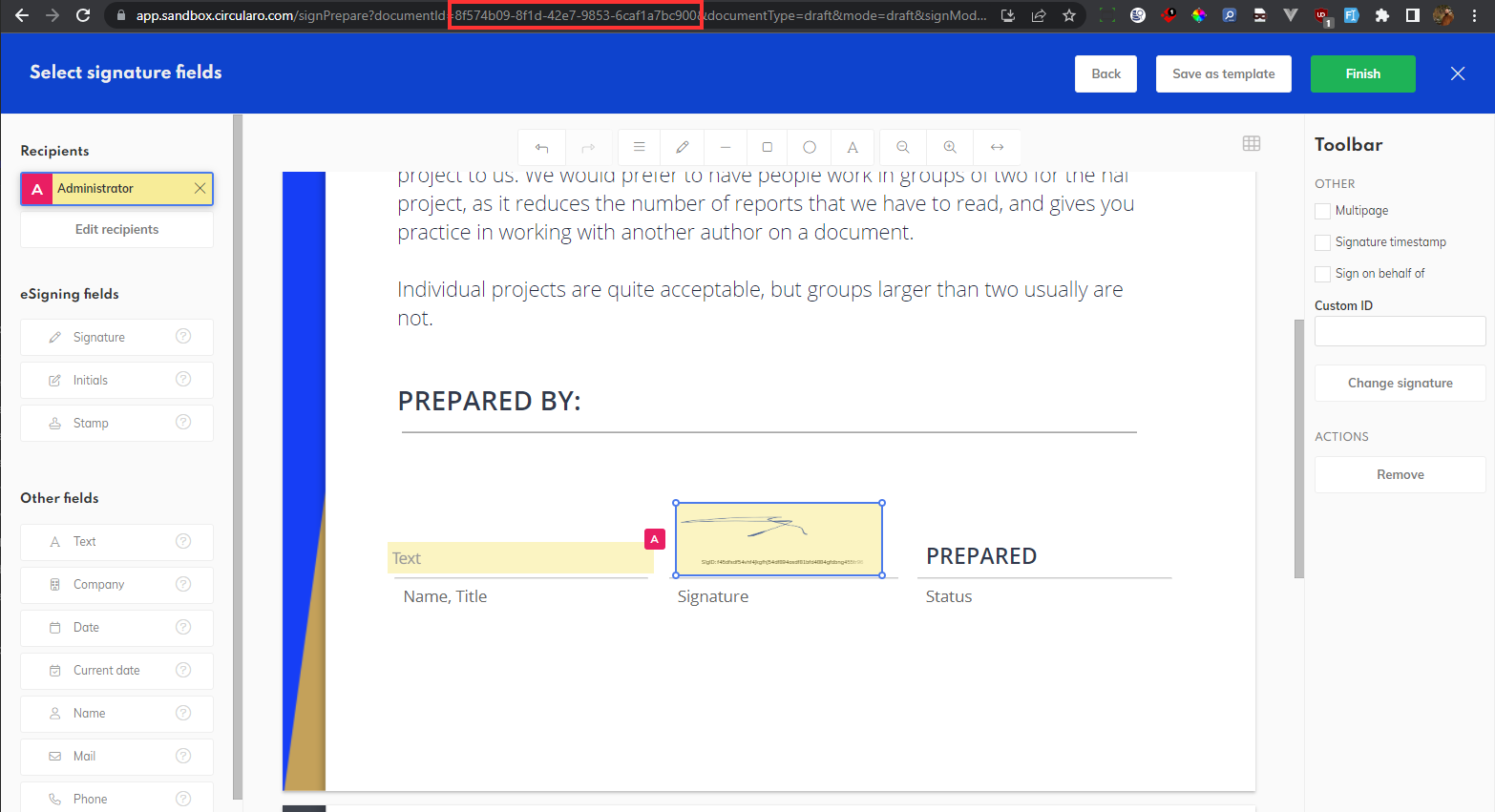
Upload your document and use the visual interface to place signature fields exactly where you want them. You can add text fields, signature fields, and other components as needed.
Step 3: Complete the Signing Process
After positioning all fields, complete the signing process. Note the document ID from the URL for the next step.
Step 4: Retrieve Position Values via API
Use the GET /documents/{id} endpoint to retrieve the document details, including the exact position values of all signature fields.
GET /documents/{id}In the API response, look for the signatureComponents array, which contains the position information for each field:
"signatureComponents": [
    {
      "actor": {
        "name": "john.doe@circularo.com",
        "type": "internal"
      },
      //...more data
      "component": "signature",
      "pages": [
        1
      ],
      "position": {
        "percentHeight": 0.05960278375957462,
        "percentWidth": 0.21313069734460888,
        "percentX": 0.4108208739825665,
        "percentY": 0.7664897649734648
      },
      //...more data
    }
  ]
Method 2: Using Browser Developer Tools
If you prefer not to make an additional API call, you can capture the position values directly from your browser's developer tools.
Step 1: Open Developer Tools
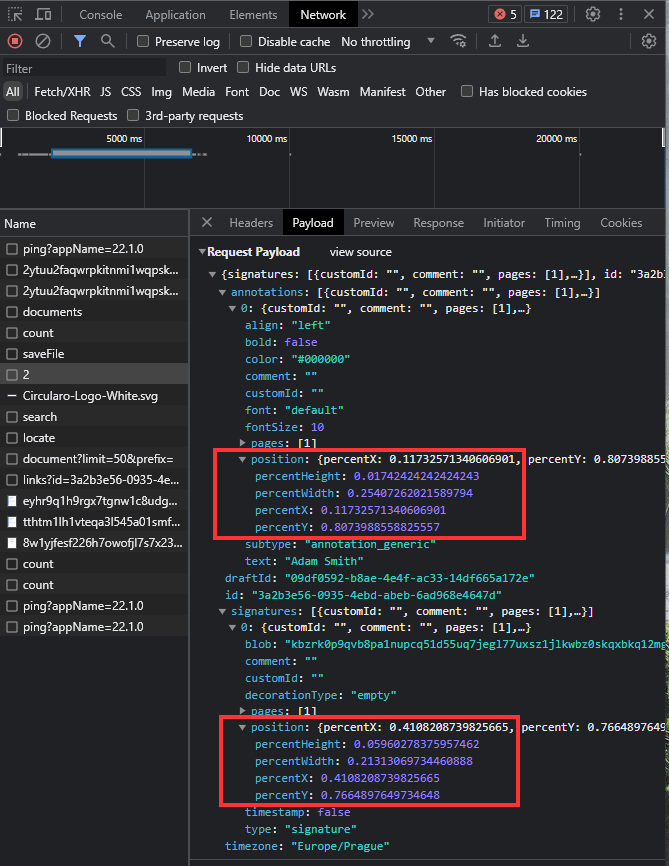
Before completing the signing process, open your browser's developer tools (F12 or right-click and select "Inspect") and navigate to the Network tab.
Step 2: Complete the Signing Process
Position your signature fields and complete the signing process while monitoring the network requests.
Step 3: Locate the Signature Request
In the Network tab, look for a PUT request to an endpoint like "/documents/sign/{version}". The request payload will contain the position values for all signature fields.
Method 3: Manual Calculation
For advanced use cases or when working with standardized documents, you may want to calculate position values manually.
Calculation Tips
Divide the document into a grid (e.g., 10×10) to estimate positions more easily
For a signature at the bottom right, try starting with percentX = 0.7, percentY = 0.8
Standard signature fields often work well with percentWidth = 0.25 and percentHeight = 0.1
Remember to account for margins and padding in your document
Best Practices for Signature Positioning
Optimal Placement
Place signature fields near related content (e.g., "Signature" labels or lines)
Avoid placing signatures over text or other important content
For multiple signers, arrange fields in a logical order (left to right or top to bottom)
Ensure sufficient space between multiple signature fields (at least 0.05 in percentHeight)
Size Considerations
Make signature fields large enough to be easily visible (recommended minimum: percentWidth = 0.2, percentHeight = 0.05)
Avoid excessively large signature fields that might dominate the document
Maintain consistent sizes for similar types of signature fields
Common Pitfalls to Avoid
Overlapping Fields: Ensure signature fields don't overlap with each other or with important document content
Edge Placement: Avoid placing signatures too close to document edges (keep percentX > 0.05 and percentY > 0.05)
Incorrect Page Numbers: Double-check that signature fields are assigned to the correct pages
Insufficient Field Size: Make sure signature fields are large enough for comfortable signing
Using Position Values in API Calls
Once you've determined the optimal position values for your signature fields, you can use them in your API calls when sharing documents for signature.
// Example: Sharing a document for signature with specific field positioning
POST /share
{
  "id": "documentId",
  "type": "documentType",
  "objectType": "document",
  "data": [
    {
      "sharePurpose": "sign",
      "shareTo": "recipient@example.com"
    }
  ],
  "signatureFields": [
    {
      "user": ["recipient@example.com"],
      "timestamp": false,
      "required": true,
      "type": "signature",
      "pages": [1],
      "position": {
        "percentX": 0.4108208739825665,
        "percentY": 0.7664897649734648,
        "percentWidth": 0.21313069734460888,
        "percentHeight": 0.05960278375957462
      }
    }
  ]
}

For more information about sharing documents for signature, see the "Core Sharing & Signing Scenarios" documentation.
Conclusion
Proper signature positioning is essential for creating professional documents and providing a smooth signing experience. By understanding Circularo's coordinate system and using the methods described in this guide, you can precisely position signature fields in your documents.
Remember that the easiest approach is to use Circularo's UI to position signatures visually, then extract the position values for use in your API integration.