
4. Anchor Tag Positioning
Anchor Tag Positioning
Overview
Anchor tag positioning is a powerful feature that allows you to dynamically place signature fields at specific locations in a document by referencing existing text. Instead of manually calculating coordinates, you can simply specify a text string (the "anchor") that exists in the document, and Circularo will automatically position signature fields relative to that text.
This approach offers several significant advantages:
Template-Friendly: Works reliably even when document layouts change slightly
Automation-Ready: Simplifies signature field placement in automated workflows
Error Reduction: Eliminates manual coordinate calculations that can lead to misplaced signatures
Consistency: Ensures signatures appear in semantically appropriate locations across different documents
How Anchor Tags Work
When using anchor tags, you provide:
1. A text string or regular expression that exists in the document 2. Offset values that define where the signature field should appear relative to the anchor text 3. Dimensions for the signature field (width and height)
Circularo scans the document for the specified text, and when found, calculates the exact coordinates for the signature field based on your offset values.
Implementing Anchor Tag Positioning
Step 1: Identify Anchor Text
First, identify text in your document that can serve as a reliable anchor point. Good candidates include:
Labels like "Signature:", "Signed by:", or "PREPARED BY:"
Section headers that precede signature areas
Unique identifiers that appear near where signatures should be placed

Choose anchor text that is unique or specific enough to avoid ambiguity. Common words might appear multiple times in a document, resulting in multiple potential signature positions.
Step 2: Define the Anchor and Offset
When uploading a document, include the anchor tag information in your request. This example shows how to position a signature field relative to the text "PREPARED BY:":
POST /files/saveFile?token=:authenticationToken

Content-Type: multipart/form-data

{
  "fileName": "Company Memorandum",
  "file": blob, //File blob
  "signatureAnchors":[{
    "id": "MyAnchor",
    "offset": {
      "percentHeight": 0.07,
      "percentWidth": 0.25,
      "percentX": 0.28,
      "percentY": 0.08
    },
    "text": "PREPARED BY:"
  }]
}
Key Parameters Explained
id: A unique identifier for this anchor tag (used to reference it in the response)
text: The exact text string to search for in the document
offset.percentX: Horizontal offset from the anchor text (positive moves right, negative moves left)
offset.percentY: Vertical offset from the anchor text (positive moves down, negative moves up)
offset.percentWidth: Width of the signature field as a percentage of document width
offset.percentHeight: Height of the signature field as a percentage of document height

All position values are expressed as decimals between 0.0 and 1.0, representing percentages of the document's dimensions. This ensures proper scaling across different device screens and document sizes.
Example Document
In this example, we want to place a signature field near the "PREPARED BY:" text:
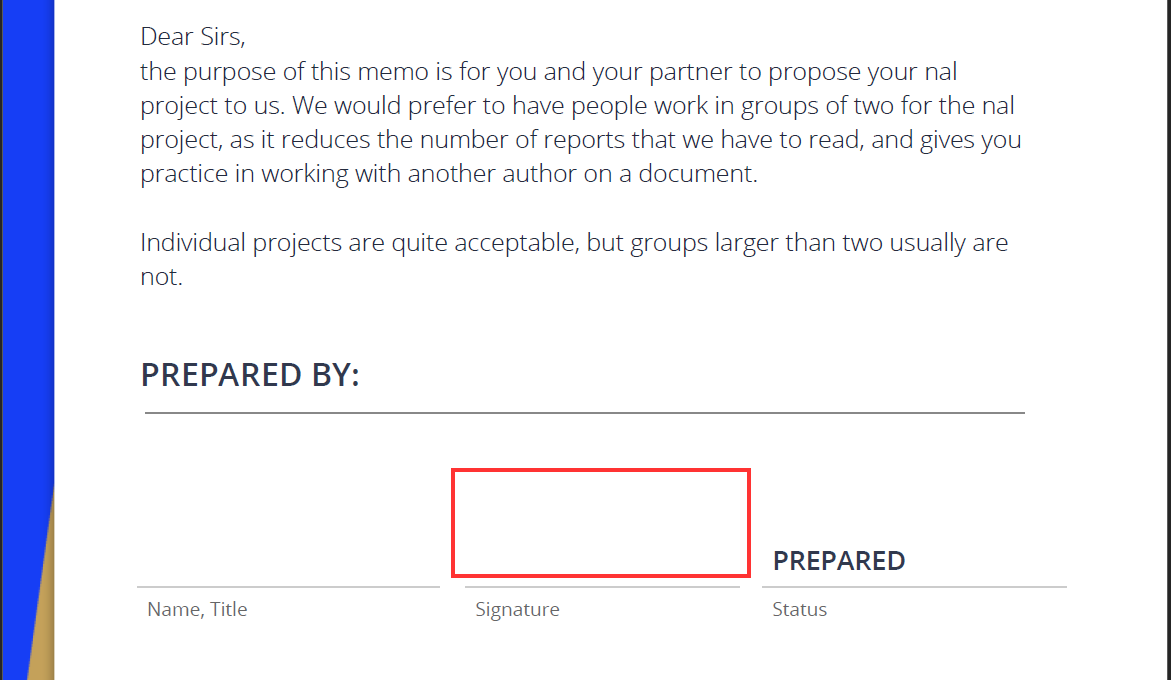
As shown in the image, we need to: - Move the signature field to the right on the X axis (positive percentX) - Move it down on the Y axis (positive percentY) - Set an appropriate width (approximately 1/4 of the page width) - Set an appropriate height (approximately 1/10 of the page height)
Step 3: Process the Response
After uploading the document with anchor tag information, Circularo returns the calculated positions:
{
  "file": {
    //file data
  },
  "anchorPositions": [{
    "id": "MyAnchor",
    "fields": [{
      "page": 1,
      "position": {
        "percentHeight": 0.07,
        "percentWidth": 0.25,
        "percentX": 0.11764706,
        "percentY": 0.6826886
      }
    }]
  }]
}
The response includes: - The file information - The calculated position for each anchor tag - The page number where the anchor text was found - The exact coordinates where the signature field should be placed

Store these calculated positions for use in subsequent API calls when signing the document or requesting signatures from others.
Step 4: Use the Calculated Positions
Once you have the calculated positions, you can use them when signing the document:
PUT /documents/sign/3?token=:authenticationToken

{
  "signatures": [{
    "pages": [1],
    "position": { //taken from anchorPositions
      "percentHeight": 0.07,
      "percentWidth": 0.25,
      "percentX": 0.11764706,
      "percentY": 0.6826886
    },
    "blob": "zg6547mm9tkuareo458ritatxsh2o96j1i3xbmcdaijkt9s3hg1rpnalxh8ldh36u",
    "decorationType": "empty",
    "type": "signature",
    "timestamp": false
  }],
  "id": "da8346af-93d1-4e10-bf31-3df751fe6606"
}
Result
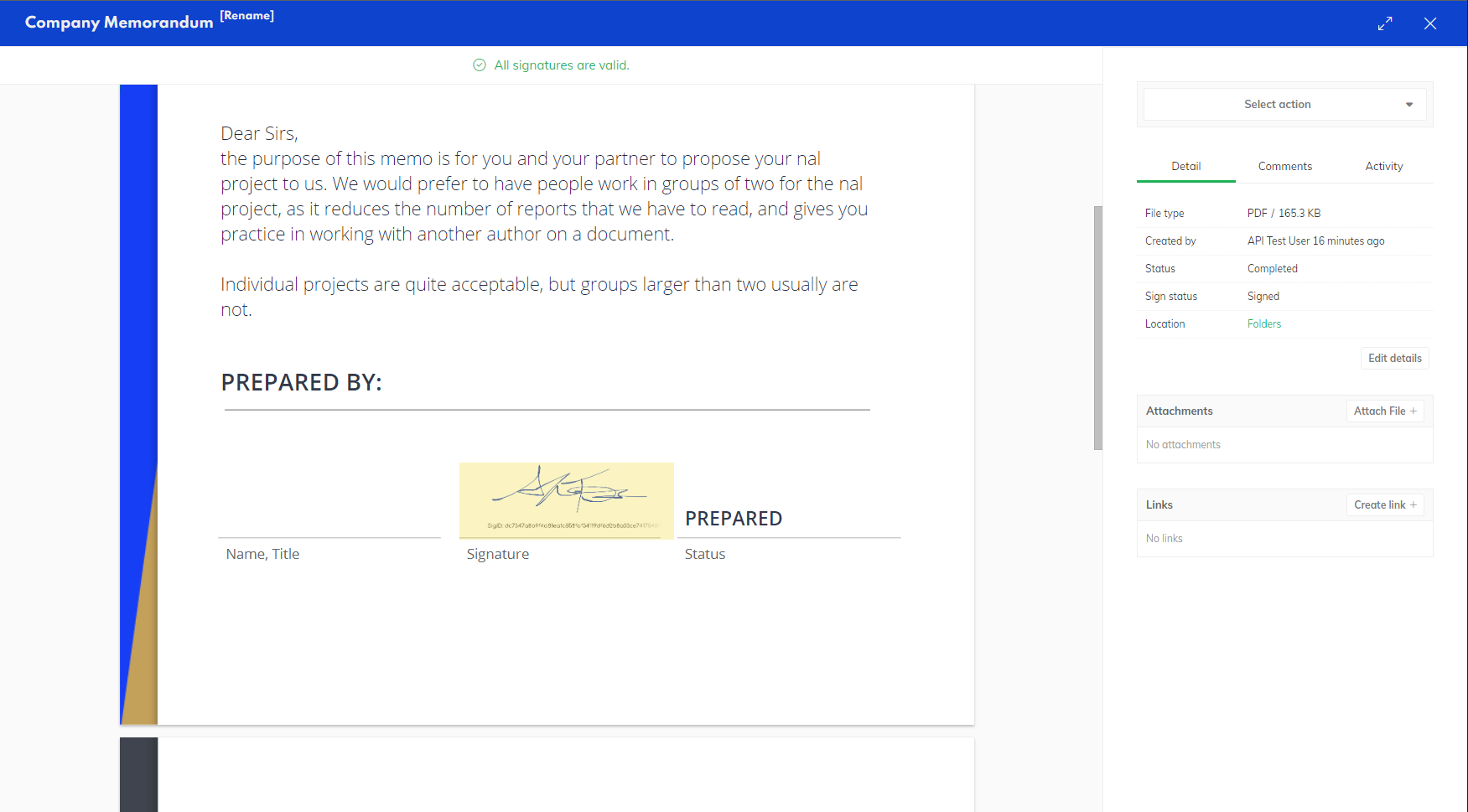
The signature is placed precisely at the calculated position:
Advanced Anchor Tag Techniques
Understanding the Reference Point
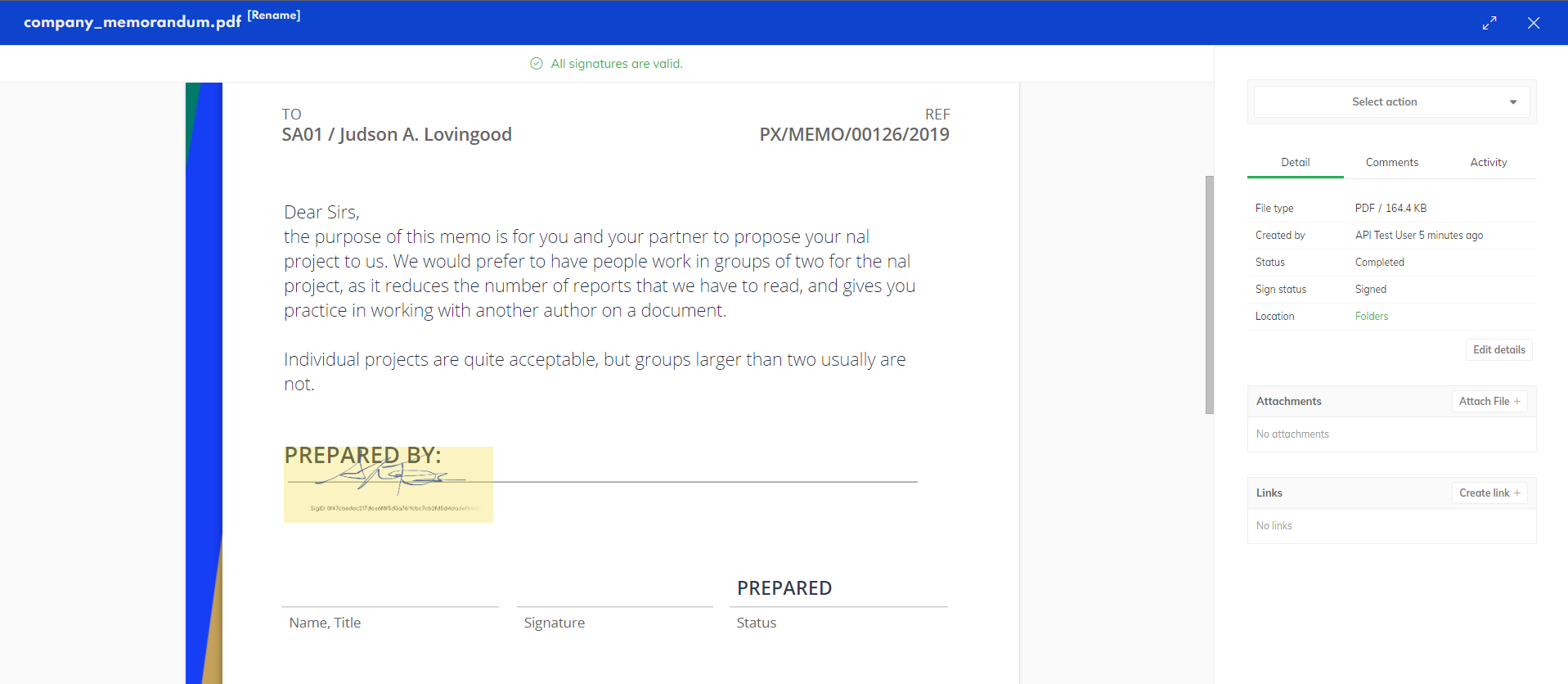
By default, the offset is calculated from the top-left corner of the first letter in the anchor text. If you specify only width and height without any offset (percentX: 0, percentY: 0), the signature field will be placed directly on top of the anchor text:
"offset": {
  "percentHeight": 0.07,
  "percentWidth": 0.25,
  "percentX": 0,
  "percentY": 0
}
"text": "PREPARED BY:"
This results in the signature field overlapping the anchor text:
Using Negative Offset Values
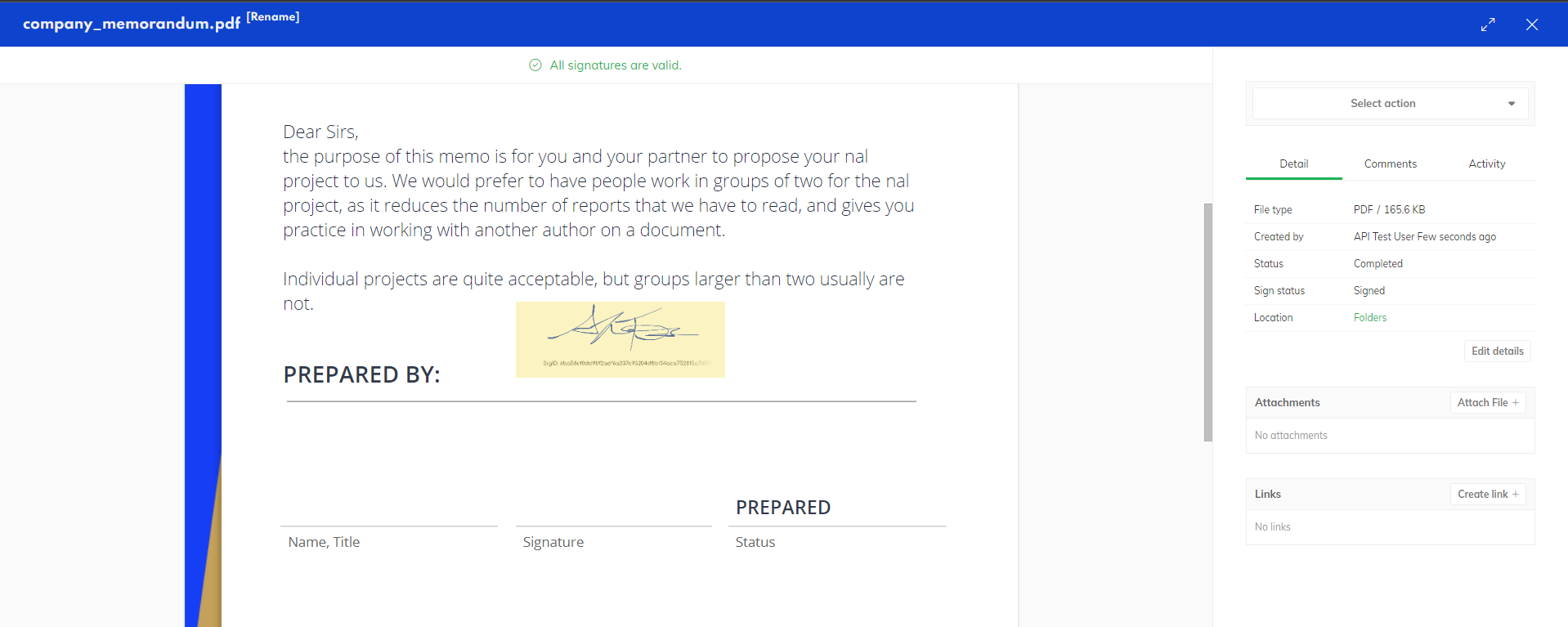
You can use negative offset values to position signature fields above or to the left of the anchor text:
"offset": {
  "percentHeight": 0.07,
  "percentWidth": 0.25,
  "percentX": 0.28,
  "percentY": -0.06
}
This places the signature field slightly above the anchor text:
Handling Multiple Matches
If Circularo finds multiple instances of the anchor text in the document, it will return positions for all matches:
"anchorPositions": [{
  "id": "MyAnchor",
  "fields": [
    {
      "page": 1,
      "position": {
        "percentHeight": 0.07,
        "percentWidth": 0.25,
        "percentX": 0.68563724,
        "percentY": 0.9211078
      }
    },
    {
      "page": 2,
      "position": {
        "percentHeight": 0.07,
        "percentWidth": 0.25,
        "percentX": 0.68563724,
        "percentY": 0.9211078
      }
    },
    {
      "page": 2,
      "position": {
        "percentHeight": 0.07,
        "percentWidth": 0.25,
        "percentX": 0.68563724,
        "percentY": 0.9211078
      }
    }
  ]
}]
When multiple matches are found, you can choose which position to use based on the page number or other criteria. For signature requests, you might want to use the first match or a specific page.
Using Multiple Anchor Tags
You can define multiple anchor tags in a single request to position different signature fields:
"signatureAnchors": [{
  "id": "FirstTag",
  "offset": {
    "percentHeight": 0.07,
    "percentWidth": 0.25,
    "percentX": 0.28,
    "percentY": 0.08
  },
  "text": "Signature"
},
{
  "id": "SecondTag",
  "offset": {
    "percentHeight": 0.07,
    "percentWidth": 0.25,
    "percentX": 0.28,
    "percentY": 0.08
  },
  "text": "PREPARED BY:"
}]
Using Regular Expressions
For more flexible matching, you can use regular expressions instead of literal text:
{
  "offset": {
    "percentHeight": 0.07,
    "percentWidth": 0.25,
    "percentX": 0.28,
    "percentY": 0.08
  },
  "regexp": "\\b[A-Z]{11}\\b"
}
This example searches for any 11-character uppercase word in the document.
When using regular expressions, escape backslashes with an additional backslash as shown in the example.
Best Practices and Limitations
Best Practices
Choose Unique Anchor Text: Select text that appears only once in the document to avoid ambiguity
Test with Sample Documents: Verify anchor tag positioning with representative documents before deploying in production
Use Appropriate Offsets: Adjust offset values to ensure signature fields don't overlap with document content
Consider Document Variations: Account for potential variations in document formatting when selecting anchor text
Limitations
Boundary Constraints
While the API will calculate positions based on your offset values, signature fields must remain within the document boundaries (0.0 to 1.0) when actually applied:
"anchorPositions": [{
  "id": "MyAnchor",
  "fields": [{
    "page": 1,
    "position": {
      "percentHeight": 0.07,
      "percentWidth": 0.25,
      "percentX": 1.11764706, // Exceeds document boundary
      "percentY": 0.6826886
    }
  }]
}]
Using this position in subsequent API calls will result in an error:
Request validation errors: BODY ERRORS: "signatures[0].position.percentX" must be less than or equal to 1Text Recognition Limitations
Anchor tag positioning relies on text recognition within the document:
Text in images or scanned documents might not be recognized
Unusual fonts or formatting might affect text recognition
Very small text might be missed during scanning
Conclusion
Anchor tag positioning provides a powerful, flexible approach to placing signature fields in documents. By referencing existing text rather than hard-coding coordinates, you can create more robust document workflows that adapt to variations in document layout and content.
For complex documents or workflows, combine anchor tags with other Circularo features such as templates, multi-party signing, and automated reminders to create comprehensive document processing solutions.