
Guide
1. Activate the integration
May perform an user with role
System managerOn the main screen choose
Integrations→Circularo Integration
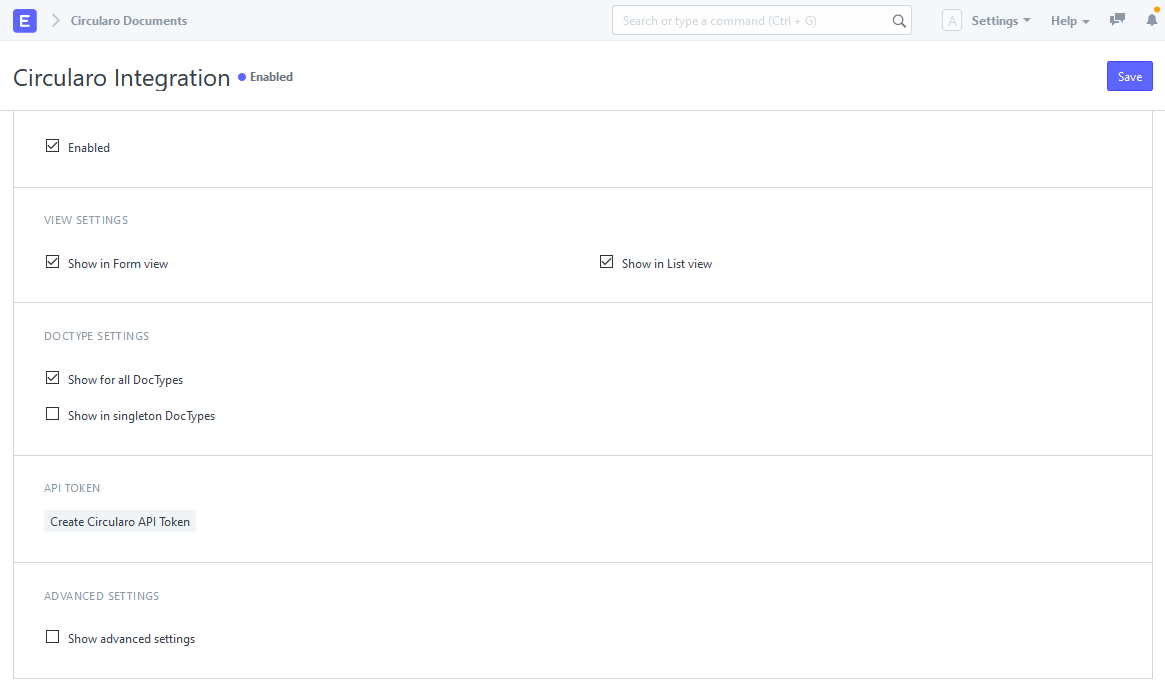
Enable the integration
Enable and choose where to show the integration button:
View settings:
Form view - Detail of one record, see below
List view - List of multiple records, see below
DocType settings:
Either specify individual DocTypes or activate for all of them
Singleton is DocType where only one record may exists
Usually used in settings -
Circularo Integrationis singleton DocType
Then create API Token
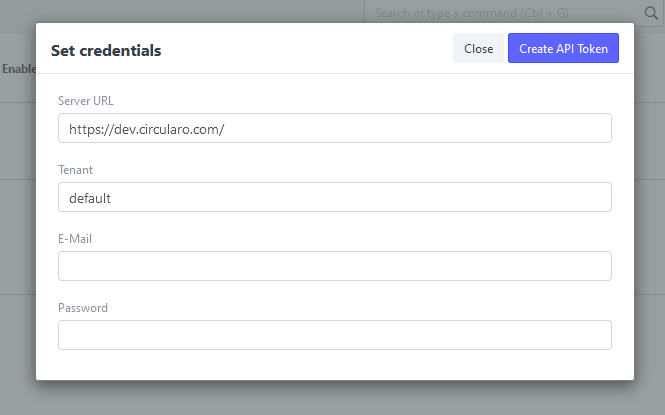
Create API Token
All fields are validated and signature must be already present in Circularo account.
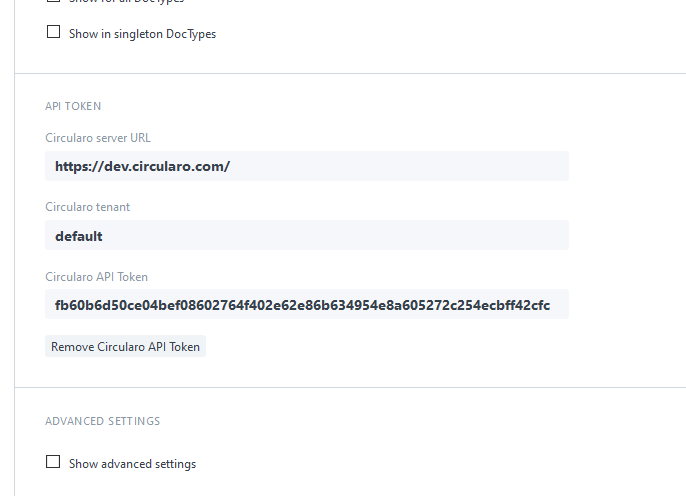
Created API Token
Now the integration is activate.
2. Use the integration
Integration actions may perform any logged in user
The integration button is by default visible in
List View
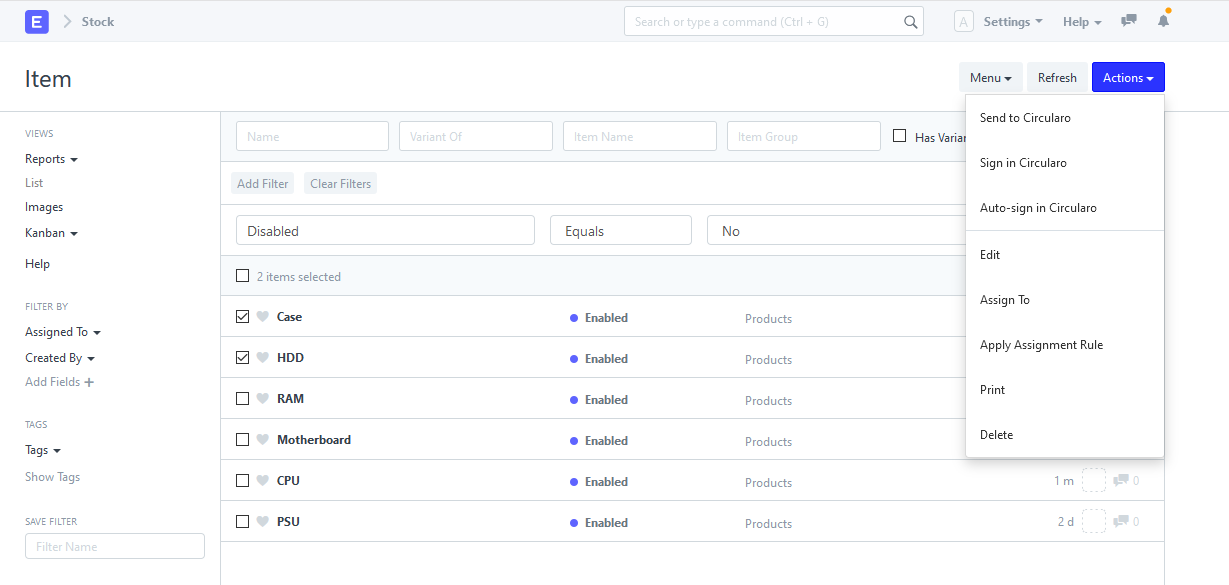
Integration in ListView
Add in
Form View
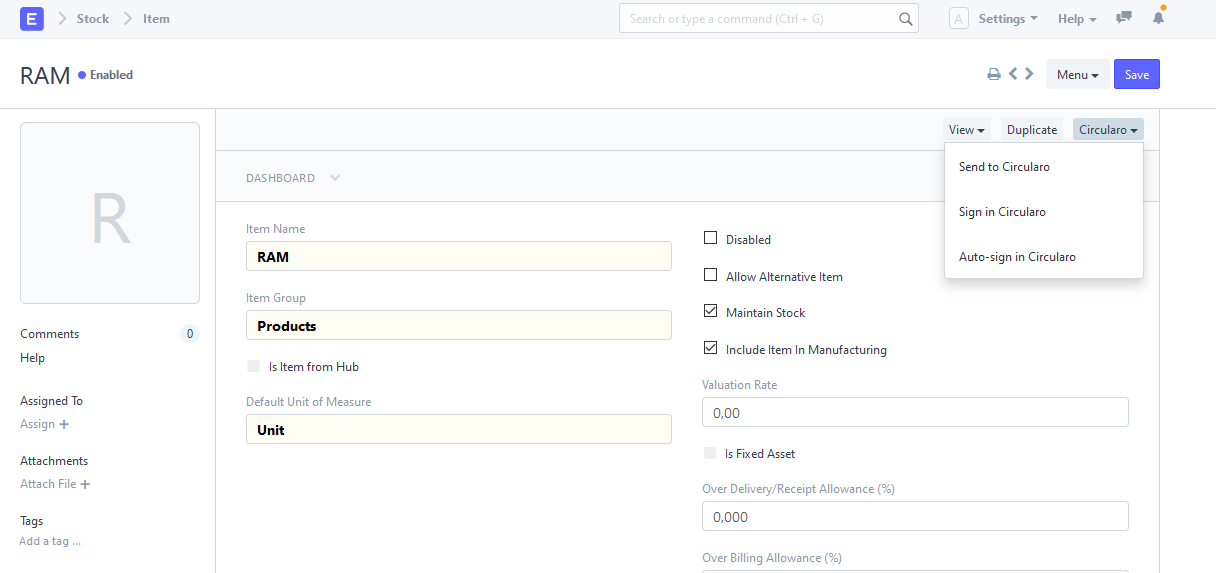
Integration in Form View
a) Send to Circularo
Archives a document in Circularo.
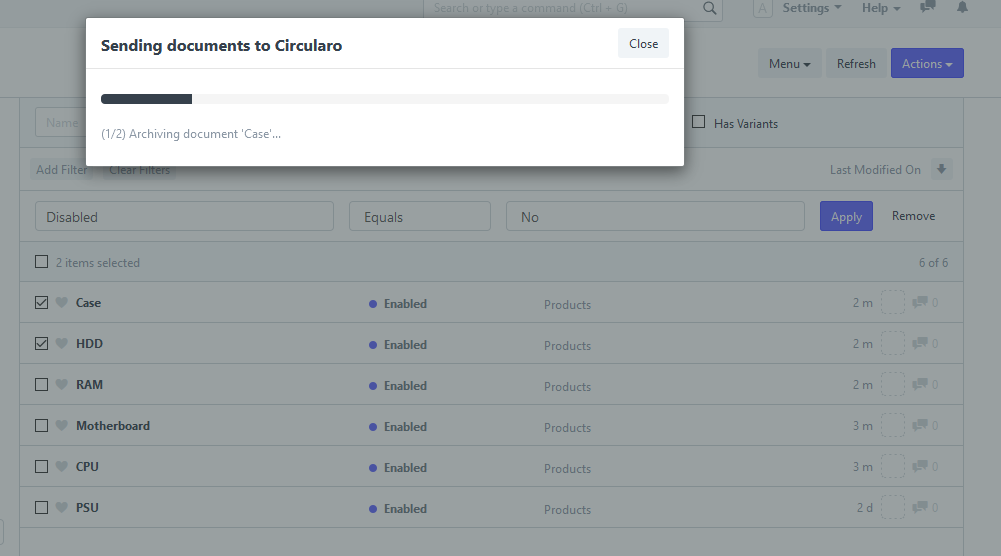
Archiving two documents in Circularo
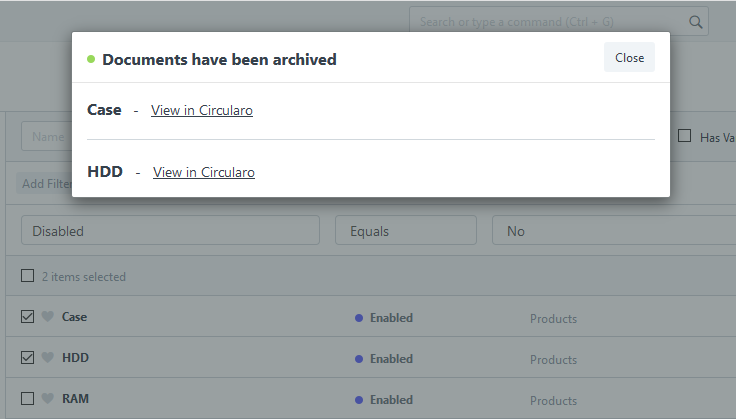
Documents have been archived
You can click the document title to go to history (see bellow)
b) Sign in Circularo
Manually sign a document in Circularo
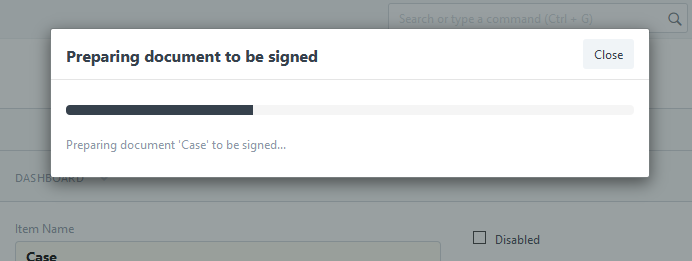
Preparing document to be signed
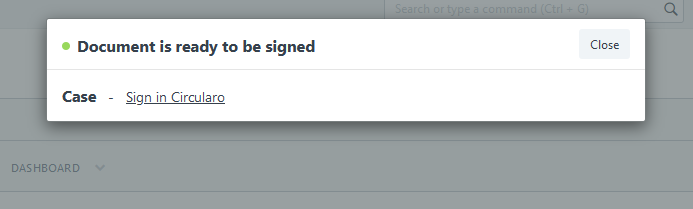
Document is ready to be signed
You can click the document title to go to history (see bellow)
Manually signed document can be downloaded to frappe system on request
In document history click
Download signed file
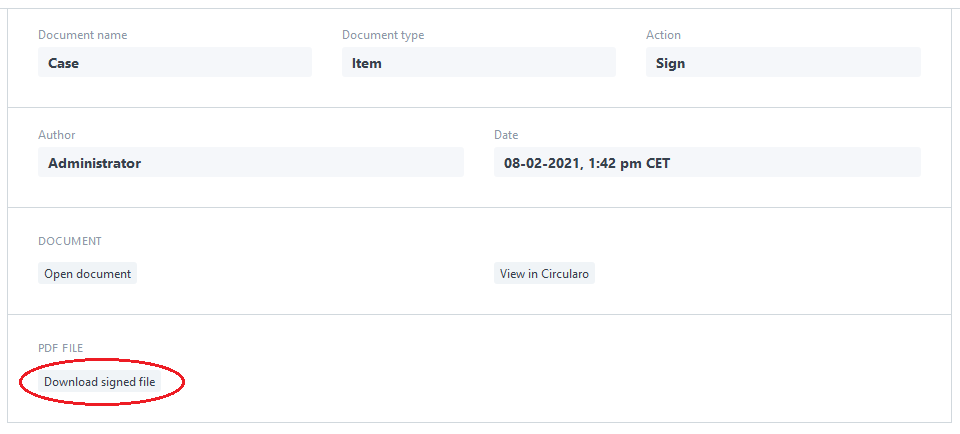
Download manually snipped document
If the document has not been signed yet, you will be notified, otherwise the document is downloaded.
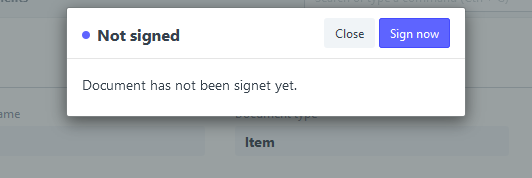
Document has not been signed yet
c) Auto-sign in Circularo
Document is automatically signed and downloaded back to frappe (and send to an e-mail)
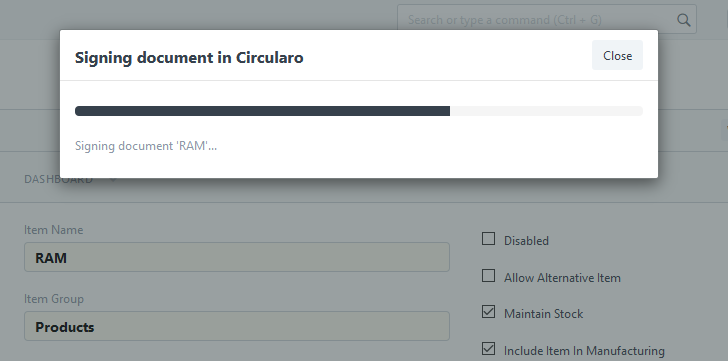
Signing document in Circularo
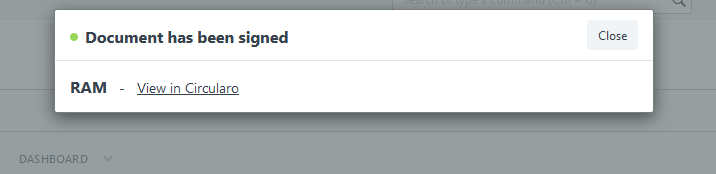
Document has been signed
You can click the document title to go to history (see bellow)
You can view the signed file here
Document has been automatically sent to user’s e-mail
SMTPserver must be configured properlyAutomatic e-mail send must be allowed in
Circularo Integration→Advanced Settings
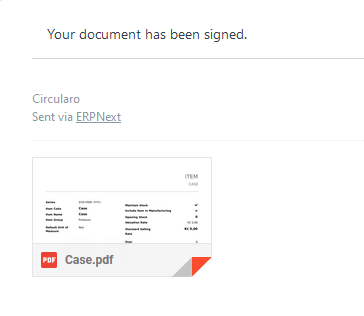
Automatically signed document has been sent to an e-mail
3. History
On the main screen choose
Circularo DocumentsShows history of all sent/signed documents
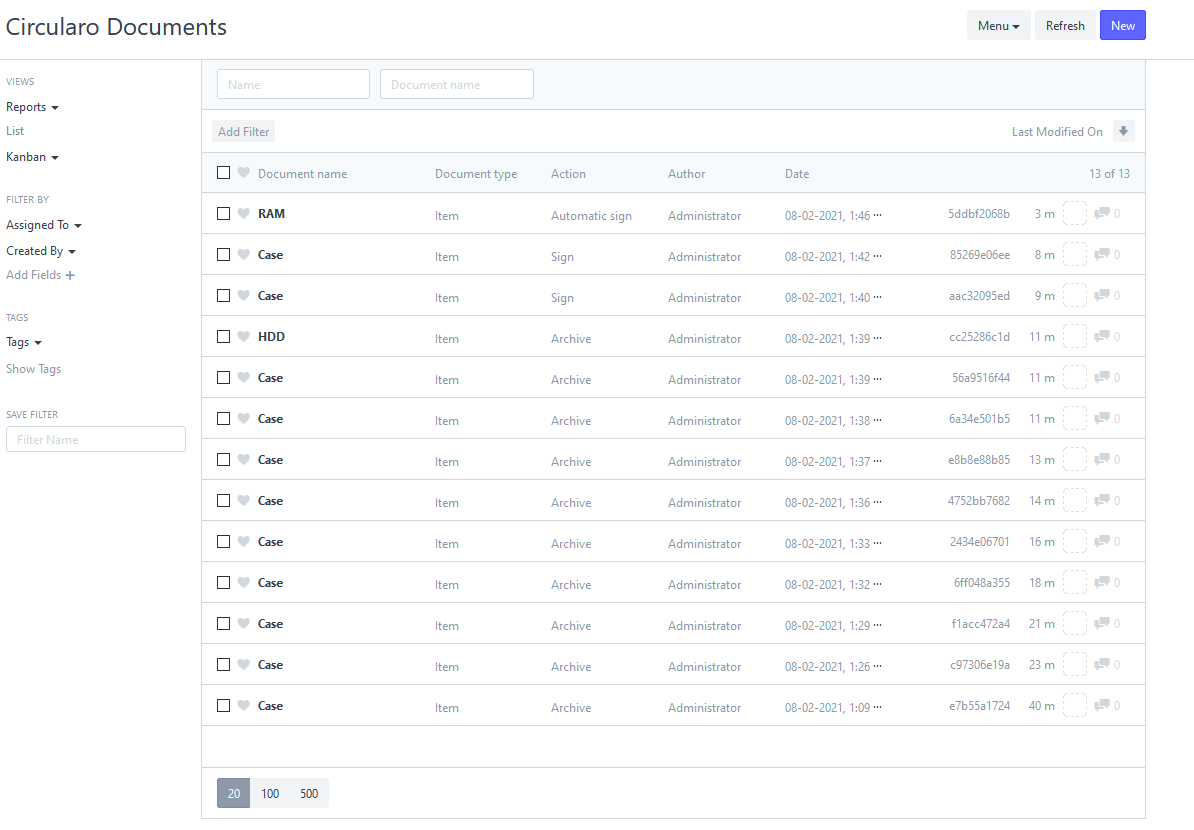
List of all sent/signed documents
Each record contains information about the document and performed action
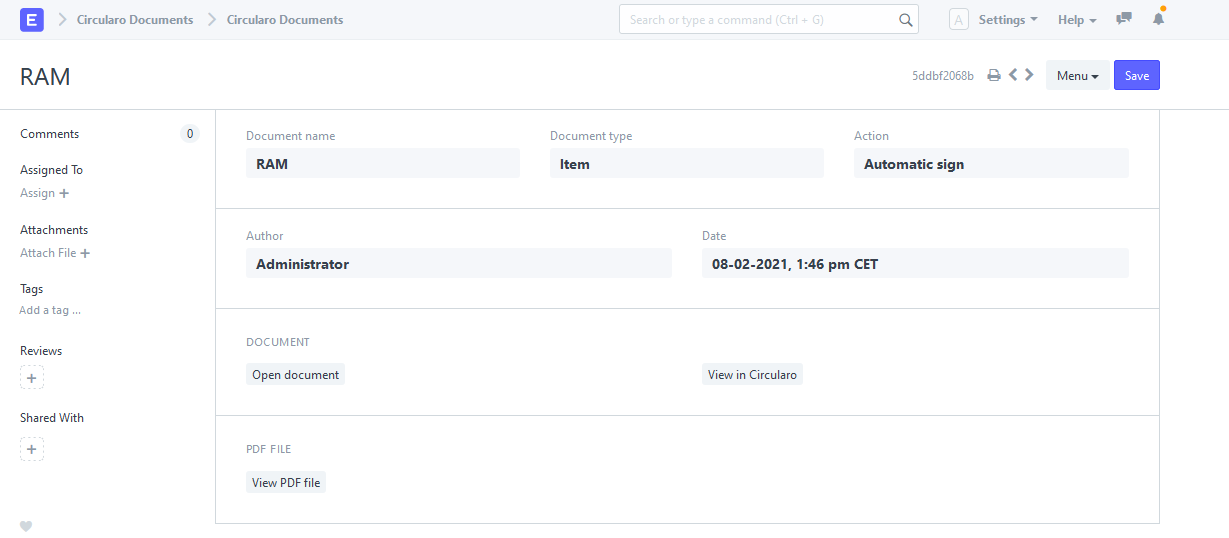
Record detail
You can use following buttons:
Open document- Opens original document in frappe systemView in Circularo- Opens document in CircularoView PDF file- Opens PDF file in frappe, depends on used action:Send to Circularo- Opens archived / not signed fileSign in Circularo- Signed file must be downloaded first (see above)Auto-sign in Circularo- Opens signed file