
1. Prepare document from template
Prepare empty document
<frontend_url>/compose/create/general?mode=create&definition=<document_type>
You must specify document type (template name)
Example:
For document type c_time_off_request use:
<frontend_url>/compose/create/general?mode=create&definition=c_time_off_request
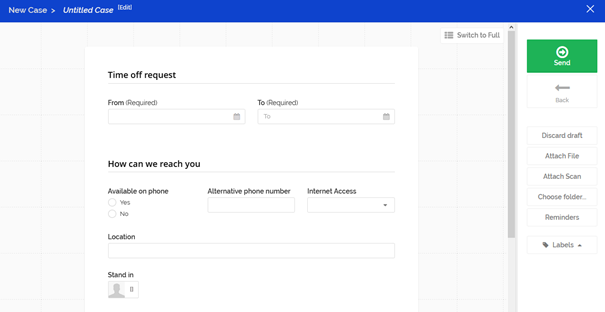
Prepare document with prefilled fields
<frontend_url>/compose/create/general?mode=create&definition=<document_type>&defaults=<prefilled_fields>
You must specify document type (template name) and prefilled fields.
-
Prefilled fields must be specified in JSON format
-
Field names can be found using template editor or in HTML code
-
You can use encodeURIComponent() or similar function to escape characters
Example:
For document type c_time_off_request and field values
{
  "C_TIME_OFF_REQUEST_LEAVE_FROM":          "2020-11-15T00:00:00.000Z",
  "C_TIME_OFF_REQUEST_LEAVE_TO":            "2020-11-26T00:00:00.000Z",
  "C_TIME_OFF_REQUEST_AVAILABLE_ON_PHONE":  "Yes",
  "C_TIME_OFF_REQUEST_ALT_PHONE":           "123456789",
  "C_TIME_OFF_REQUEST_INTERNET_ACCESS":     "Mobile Internet"
}
use:
<frontend_url>/compose/create/general?mode=create&definition=c_time_off_request&defaults=%7B%22C_TIME_OFF_REQUEST_LEAVE_FROM%22%3A%222020-11-15T00%3A00%3A00.000Z%22%2C%22C_TIME_OFF_REQUEST_LEAVE_TO%22%3A%222020-11-26T00%3A00%3A00.000Z%22%2C%22C_TIME_OFF_REQUEST_AVAILABLE_ON_PHONE%22%3A%22Yes%22%2C%22C_TIME_OFF_REQUEST_ALT_PHONE%22%3A%22123456789%22%2C%22C_TIME_OFF_REQUEST_INTERNET_ACCESS%22%3A%22Mobile%20Internet%22%7D
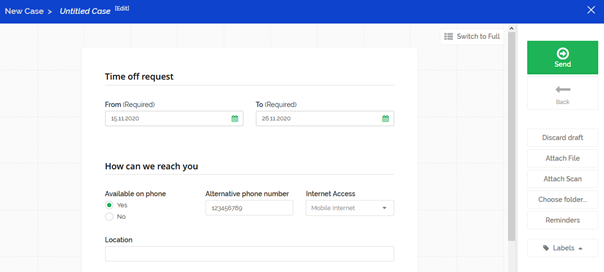
Edit existing document
<frontend_url>/compose/create/general?mode=edit&definition=<document_type>&documentId=<document_ID>
You must specify document type (template name) and document ID of the document
Example:
For existing document with type c_time_off_request and ID 51ebfacf-6c5a-4261-b2c4-5c2401e98d80 use:
<frontend_url>/compose/create/general?mode=edit&definition=c_time_off_request&documentId=51ebfacf-6c5a-4261-b2c4-5c2401e98d80
2. Prepare Microsoft Office document
<frontend_url>/compose/create/office?mode=create&definition=<document_type>&extension=<extension>&type=oos
You must specify document type and document extension
Possible extensions are:
-
docx- for Microsoft Word document -
xlsx- for Microsoft Excel document -
pptx- for Microsoft PowerPoint document
Example:
For document type d_default and docx extension (Microsoft Word) use:
<frontend_url>/compose/create/office?mode=create&definition=d_default&extension=docx&type=oos
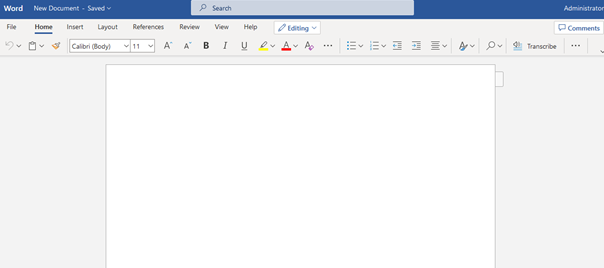
3. Prepare document from external file
<frontend_url>/compose/create/external?mode=create&definition=<document_type>&type=ext
You must specify document type
Example:
For document type d_default use:
<frontend_url>/compose/create/external?mode=create&definition=d_default&type=ext
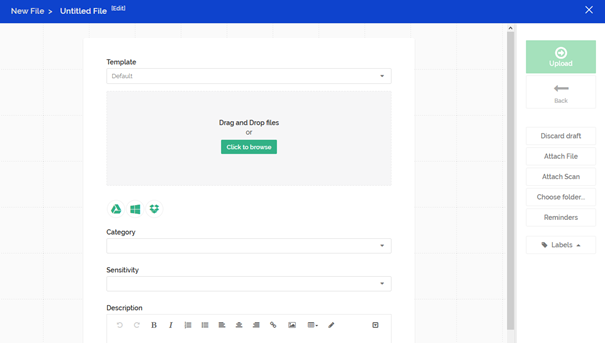
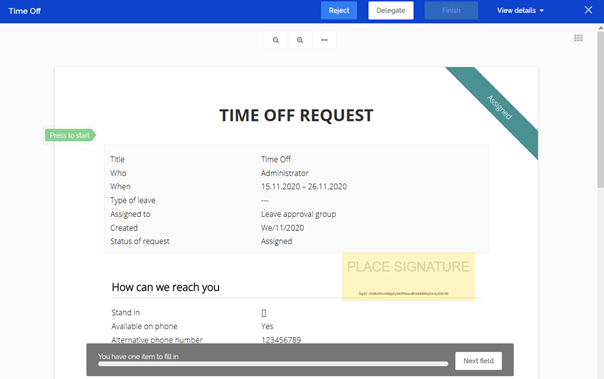
4. Sign document in Circularo
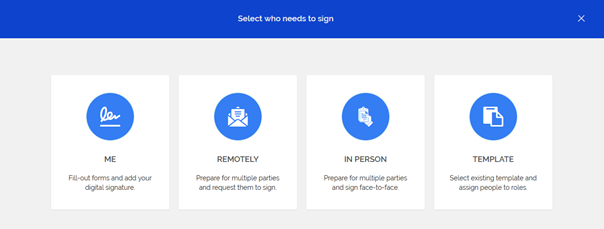
Open “Select who needs to sign” dialog
<frontend_url>/signPrepare?mode=create&documentId=<document_ID>&documentType=<document_type>&callbackUrl=<URL>
You must specify document type and ID of existing document
You can specify callbackUrl if you want to be redirected after successful signature or failure (user will not be able to leave the signing process - It does not mean the token has restricted rights! Just the current window does not allow you to leave the process)
Example:
For existing document with type c_time_off_request, ID 51ebfacf-6c5a-4261-b2c4-5c2401e98d80 and callback URL https://www.google.com use:
<frontend_url>/signPrepare?mode=create&documentId=51ebfacf-6c5a-4261-b2c4-5c2401e98d80&documentType=c_time_off_request&callbackUrl=https%3A%2F%2Fwww.google.com
Sign document
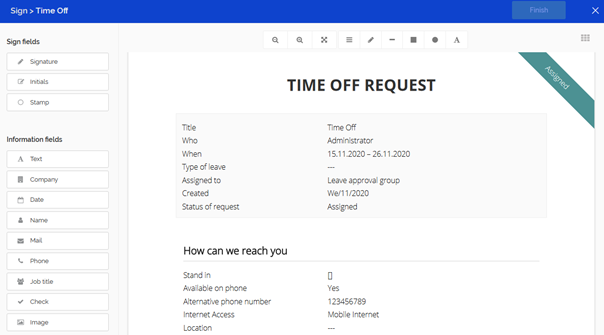
<frontend_url>/sign/<document_ID>/<document_type>
You must specify document type and ID of existing document
Example:
For existing document with type c_time_off_request and ID 51ebfacf-6c5a-4261-b2c4-5c2401e98d80 use:
<frontend_url>/sign/51ebfacf-6c5a-4261-b2c4-5c2401e98d80/c_time_off_request
5. View documents
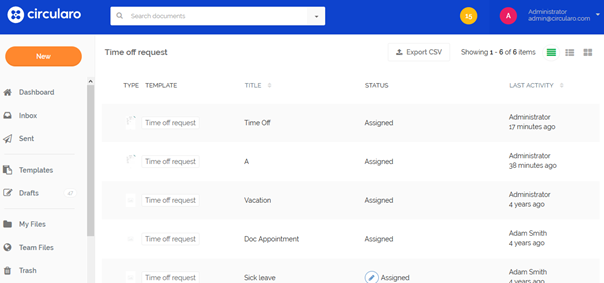
Filter documents by document type
<frontend_url>/home/<document_type>
You must specify document type
Example:
For document type c_time_off_request use:
<frontend_url>/home/c_time_off_request
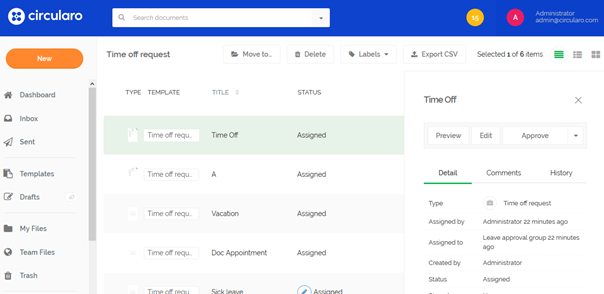
Select document
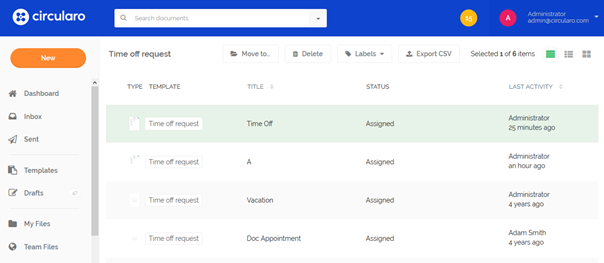
<frontend_url>/home/<document_type>?select=<document_ID>&selectType=<document_type>
You must specify document type and ID of existing document
Example:
For existing document with type c_time_off_request and ID 51ebfacf-6c5a-4261-b2c4-5c2401e98d80 use:
<frontend_url>/home/c_time_off_request?select=51ebfacf-6c5a-4261-b2c4-5c2401e98d80&selectType=c_time_off_request
Show document detail
<frontend_url>/home/<document_type>?select=<document_ID>&selectType=<document_type>&modal=detail
You must specify document type and ID of existing document
Example:
For existing document with type c_time_off_request and ID 51ebfacf-6c5a-4261-b2c4-5c2401e98d80 use:
<frontend_url>/home/c_time_off_request?select=51ebfacf-6c5a-4261-b2c4-5c2401e98d80&selectType=c_time_off_request&modal=detail
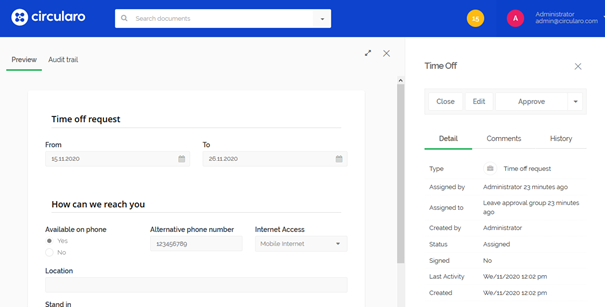
Show document preview
<frontend_url>/home/<document_type>?select=<document_ID>&selectType=<document_type>&modal=preview
You must specify document type and ID of existing document
Example:
For existing document with type c_time_off_request and ID 51ebfacf-6c5a-4261-b2c4-5c2401e98d80 use:
<frontend_url>/home/c_time_off_request?select=51ebfacf-6c5a-4261-b2c4-5c2401e98d80&selectType=c_time_off_request&modal=preview
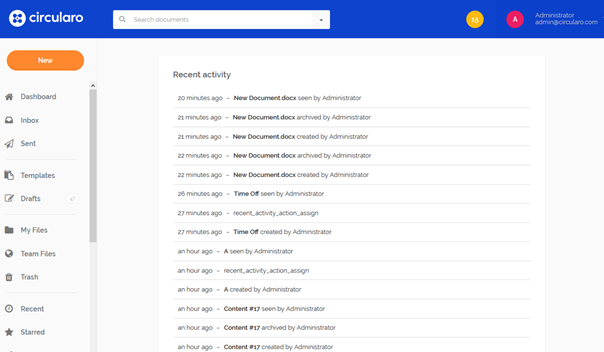
Show recent activity
<frontend_url>/home/recentActivity
6. Share link for external users
<frontend_url>/share?shareId=<share_ID>
You must specify share ID
Example:
For existing share with id ad54c893defd0cb7c613147a0d427155bcfd82d3dc3905b59d05721e261e4e04 use:
<frontend_url>/share?shareId=ad54c893defd0cb7c613147a0d427155bcfd82d3dc3905b59d05721e261e4e04
7. Redirect on Login with token to a given state
This state allows for you to use authentication token as a mean to login and automatically get redirected towards a state with some provided parameters.
Usage
<frontend_url>/loginRedirect?redirect=<new_state>&redirectParams=<redirect_params>&token=<token>
-
<new_state>- Application state where you should be redirected to. Possible values are listed in the section below. -
<redirect_params>- Parameters for the state where you are going to be redirected to. It must be a URL encoded JSON object. -
<token>- User token used for the automatic authorization.
Example
<frontend_url>/loginRedirect?redirect=/signPrepare&redirectParams=%7BdocumentId%3A%E2%80%9Drandom_document_id%E2%80%9D%2C%20documentType%3A%E2%80%9Dd_default%E2%80%9D%2C%20forceHandover%3A%20%E2%80%9CAdam%20Smith%E2%80%9C%2C%20callbackUrl%3D%E2%80%9Dhttps%3A%2F%2Fwww.google.com%2F%E2%80%9D%7D&token=abcd
Remember to encodeURI the redirectParams, otherwise the redirect will fail.
Possible states and their parameters
/signPrepare - Prepare state for document signing
-
documentId- ID of the document to be signed. -
forceHandover- Name of the user which should be automatically passed in as an in-person signer. -
callbackUrl- Sandboxes the process of signing from the rest of the application and redirects the user on success / error to the given URL.
/home/:category - Redirect to the application home.
There are multiple available categories, use these instead of :category in the URL:
-
inbox- The users inbox -
my_files- The users folders -
shared_files- The shared folders -
all_documents- The overview of all users documents
There are also couple of available parameters:
-
selected- ID of the document which will be pre-selected in the document table. -
modal- In combination with theselectedparameter show a dialog with the document data.
The only available value is“modal": "preview", which shows a document preview. -
categoryGroup- If the category is a part of a category group (defined via settings), use this parameter to show the sub-category tabs.