
1. Activate the integration
-
May perform an user with role
System manager -
On the main screen choose
Integrations→Circularo Integration
-
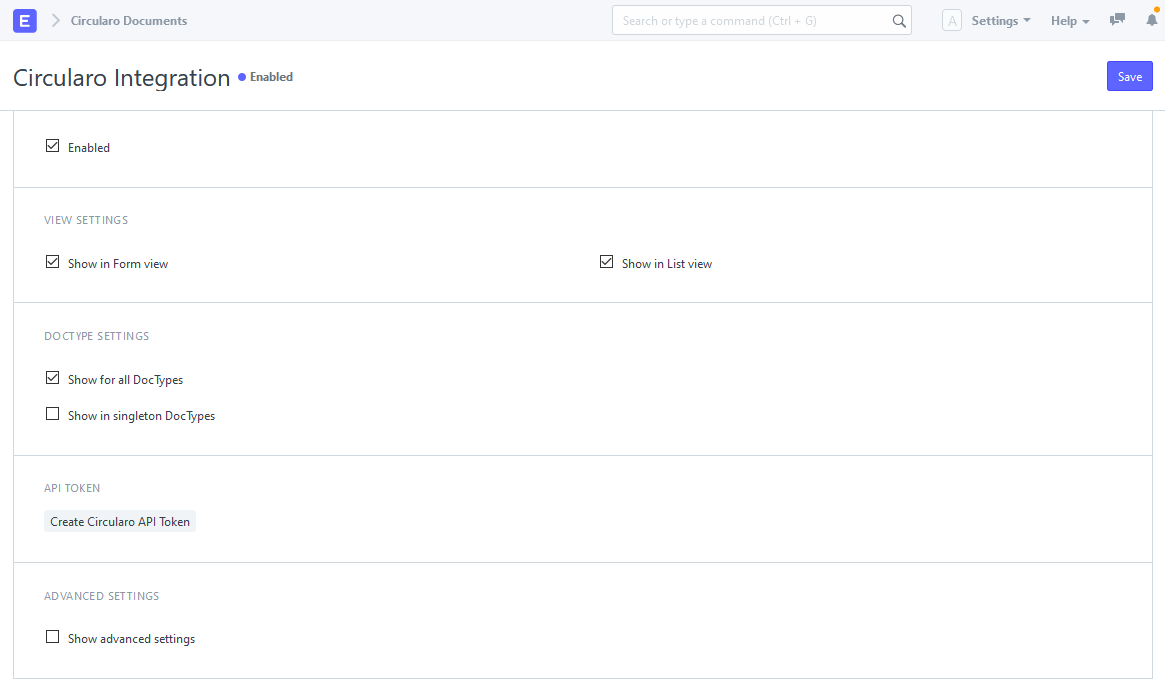
Enable and choose where to show the integration button:
-
View settings:
-
Form view - Detail of one record, see below
-
List view - List of multiple records, see below
-
-
DocType settings:
-
Either specify individual DocTypes or activate for all of them
-
Singleton is DocType where only one record may exists
-
Usually used in settings -
Circularo Integrationis singleton DocType
-
-
-
-
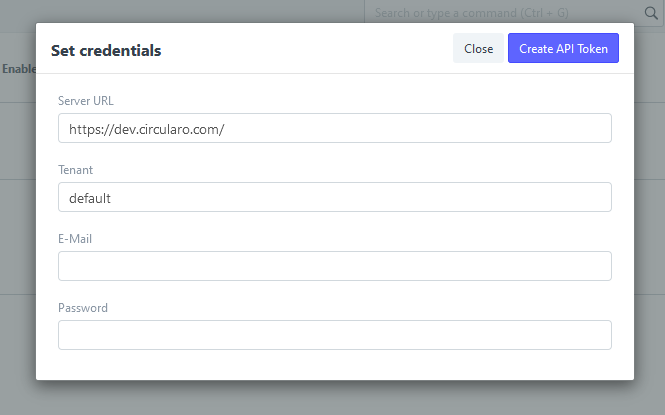
Then create API Token
-
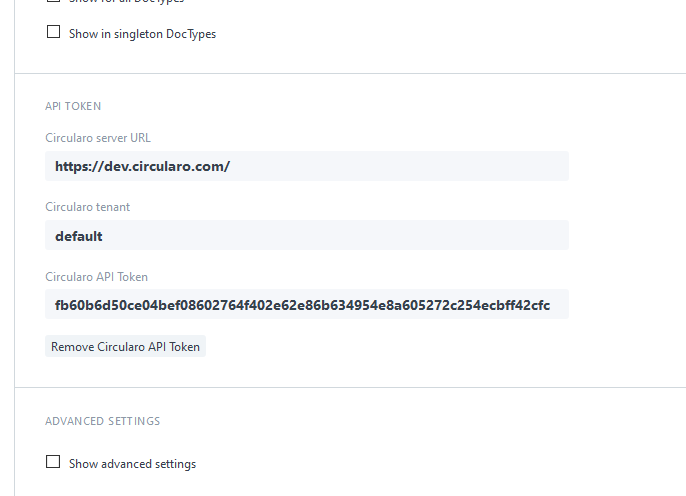
All fields are validated and signature must be already present in Circularo account.
-
Now the integration is activate.
2. Use the integration
-
Integration actions may perform any logged in user
-
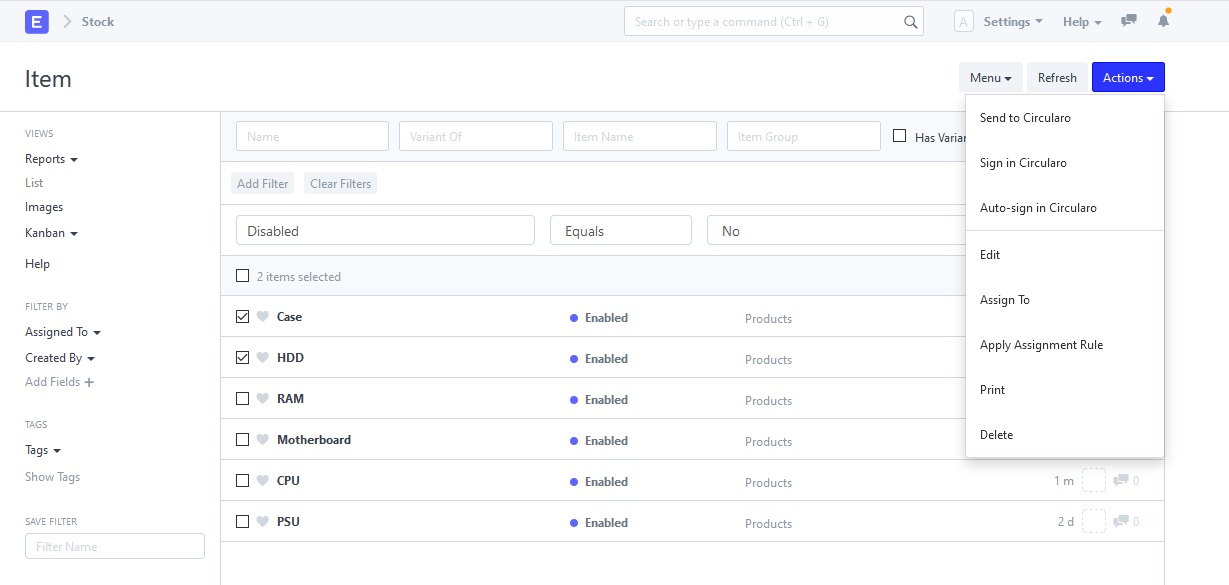
The integration button is by default visible in
List View
-
Add in
Form View
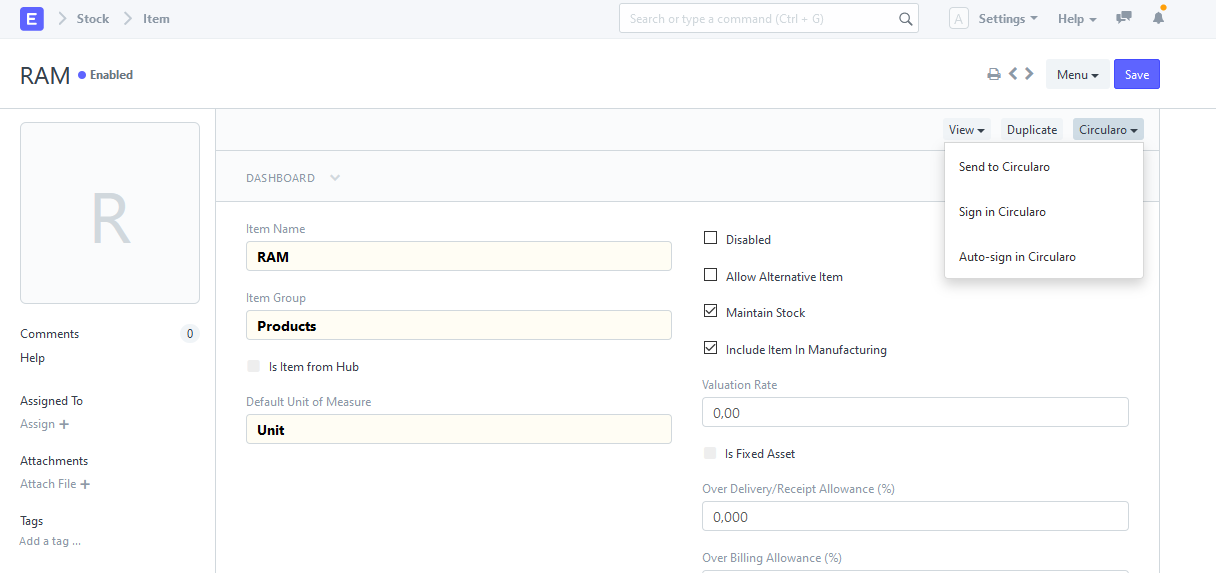
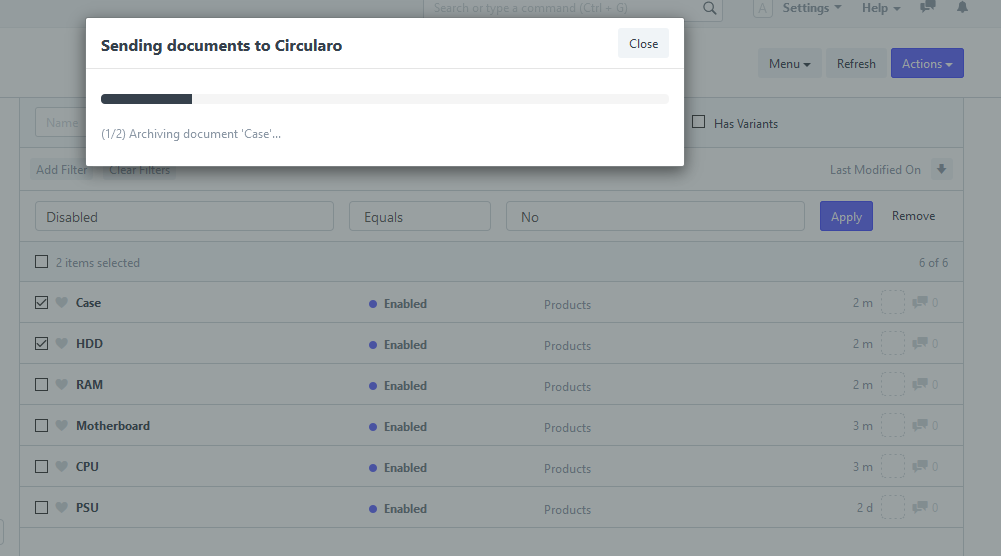
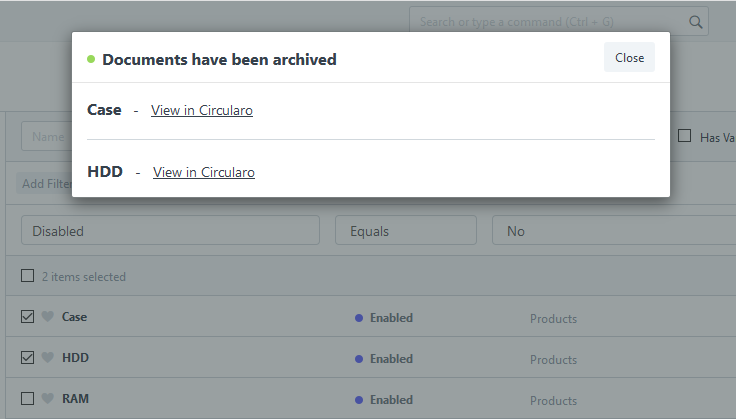
a) Send to Circularo
-
Archives a document in Circularo.
-
You can click the document title to go to history (see bellow)
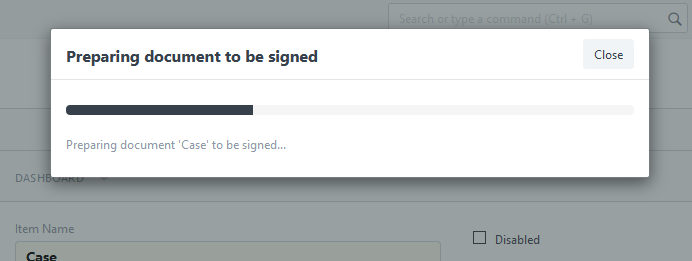
b) Sign in Circularo
-
Manually sign a document in Circularo
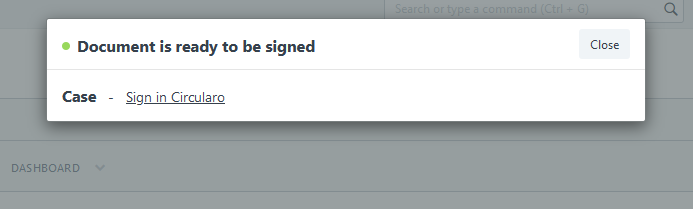
-
You can click the document title to go to history (see bellow)
-
Manually signed document can be downloaded to frappe system on request
-
In document history click
Download signed file
-
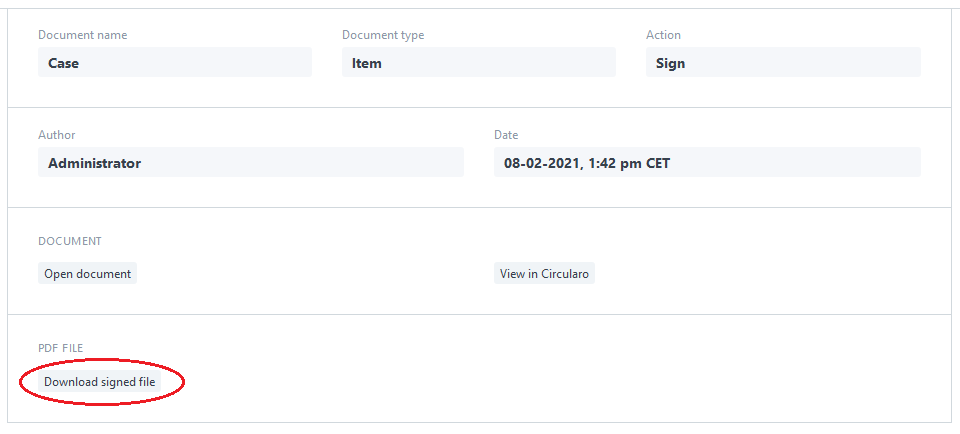
-
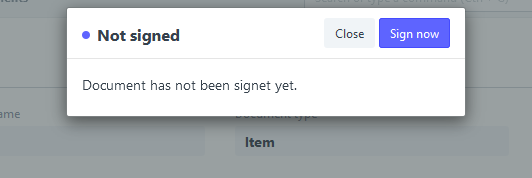
If the document has not been signed yet, you will be notified, otherwise the document is downloaded.
c) Auto-sign in Circularo
-
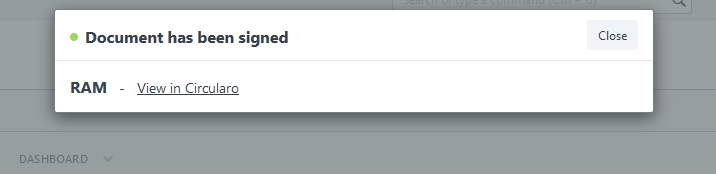
Document is automatically signed and downloaded back to frappe (and send to an e-mail)
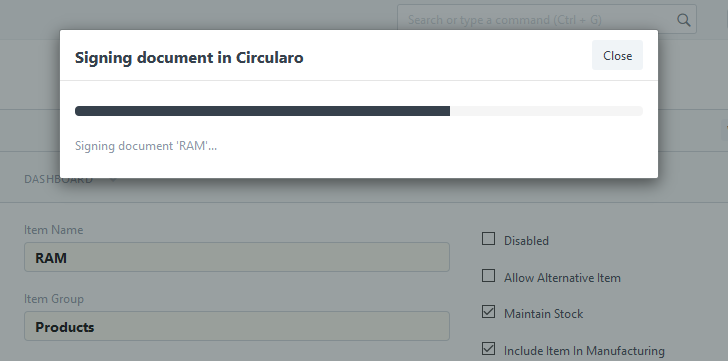
-
You can click the document title to go to history (see bellow)
-
You can view the signed file here
-
-
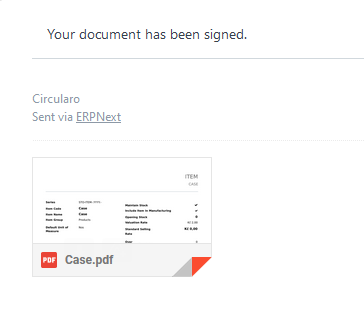
Document has been automatically sent to user’s e-mail
-
SMTPserver must be configured properly -
Automatic e-mail send must be allowed in
Circularo Integration→Advanced Settings
-
3. History
-
On the main screen choose
Circularo Documents -
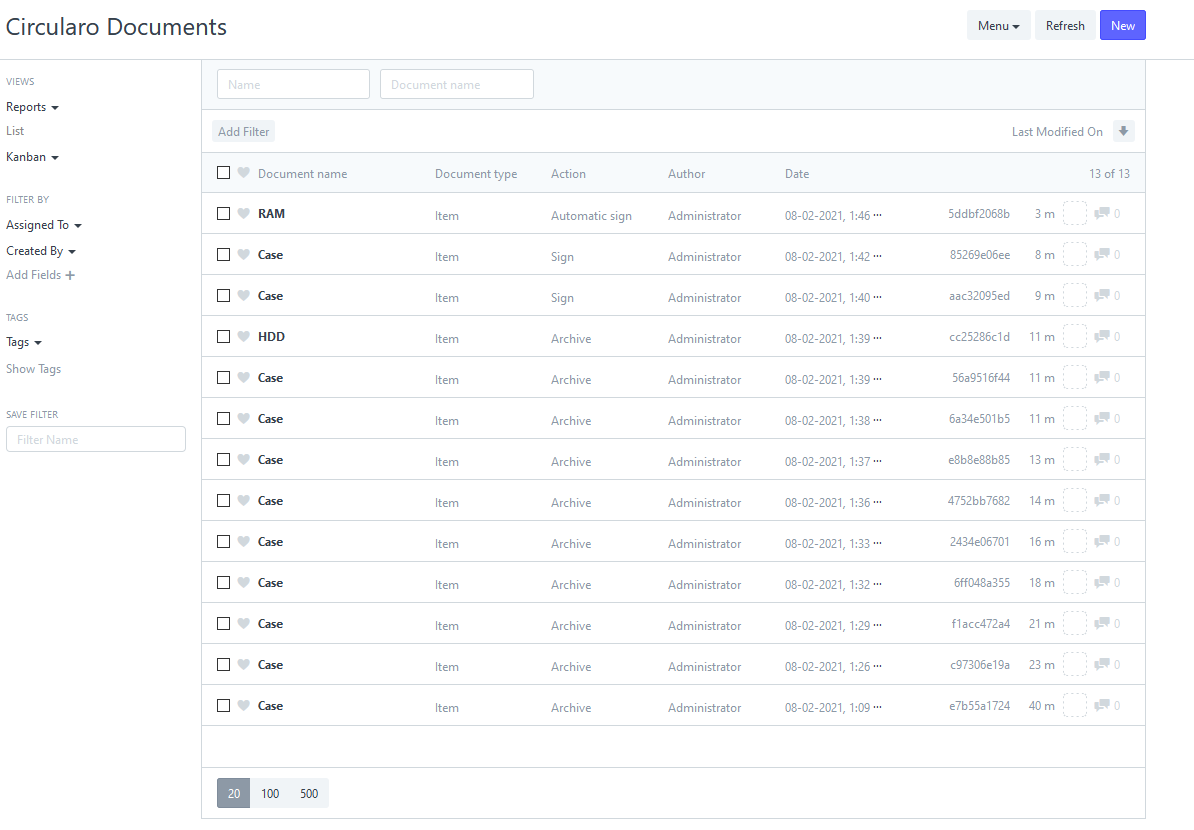
Shows history of all sent/signed documents
-
Each record contains information about the document and performed action
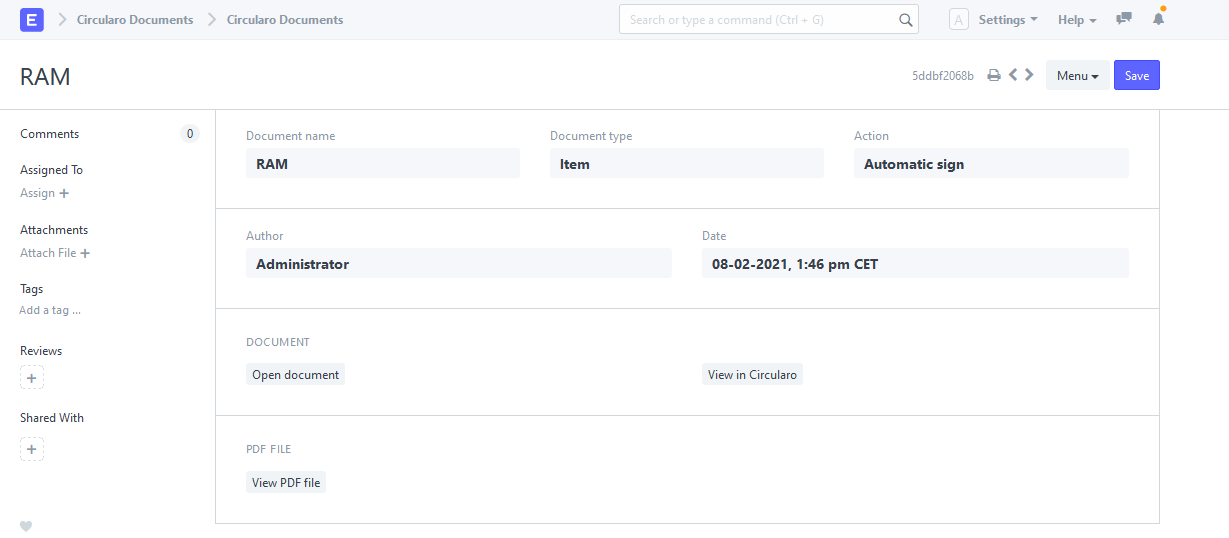
You can use following buttons:
-
Open document- Opens original document in frappe system -
View in Circularo- Opens document in Circularo -
View PDF file- Opens PDF file in frappe, depends on used action:-
Send to Circularo- Opens archived / not signed file -
Sign in Circularo- Signed file must be downloaded first (see above) -
Auto-sign in Circularo- Opens signed file
-